
Open Video Mode
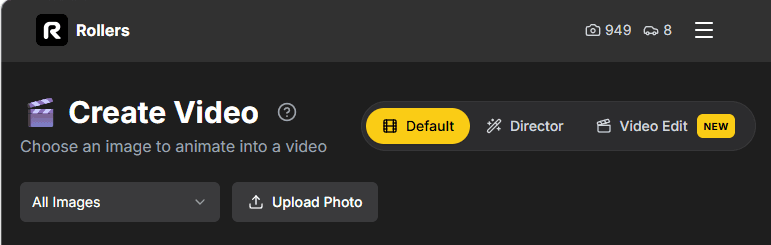
Head to Video mode — on the web, or in the iOS and Android apps. Everything below works the same in all three.
Upload a clip of your car and change the paint, the wheels, the weather, the whole city — while your original camera move stays exactly as you filmed it.
Head to Video mode — on the web, or in the iOS and Android apps. Everything below works the same in all three.
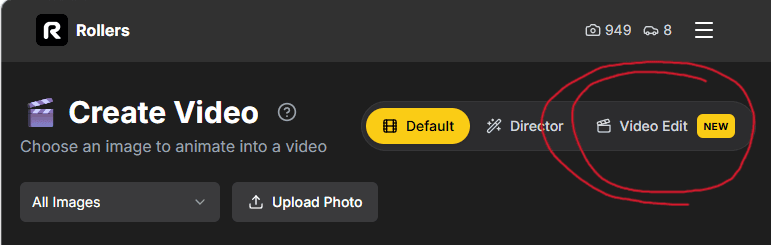
In the mode toggle at the top, pick Video Edit.
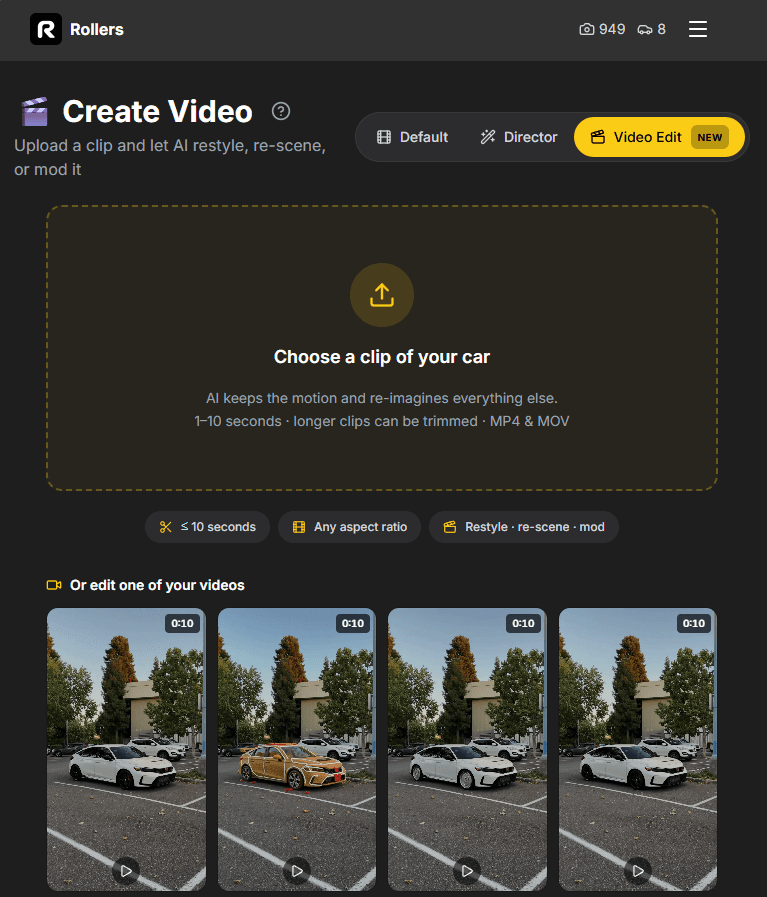
Browse the preset gallery and filter by category — Style, Mods, Scene or VFX. Tapping a template loads its prompt straight into the composer, so you can see exactly what it's asking the model to do.
Anime · Cyberpunk · VHS '90s · Blueprint · LEGO · Comic Book · Gingerbread · Life-Size LEGO
Color Swap · Wheel Swap · Widebody Kit · Slammed · Chrome Wrap · Rally Build · Soda Can Wheels · Wings · Full Build · Car Swap
Night City · Canyon Run · Heavy Rain · Snow Pass · Showroom · Forest Road · Spectators
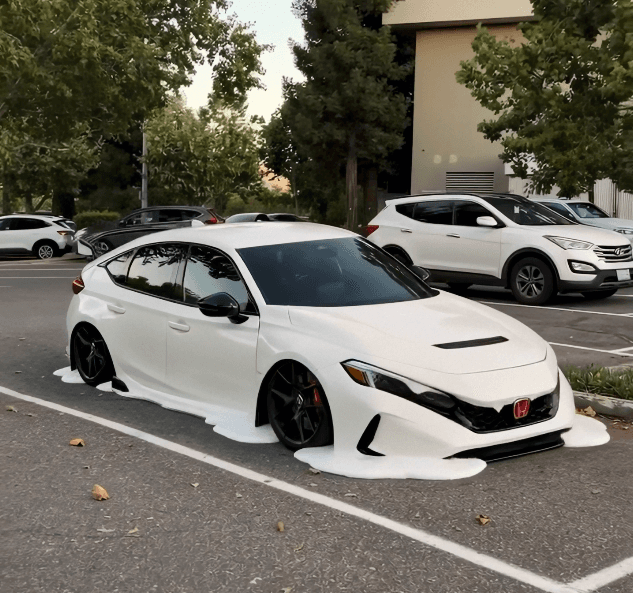
Drift Smoke · Neon Underglow · Cinematic Grade · Golden Hour · Speed Blur · Studio Spotlight · Melting Car
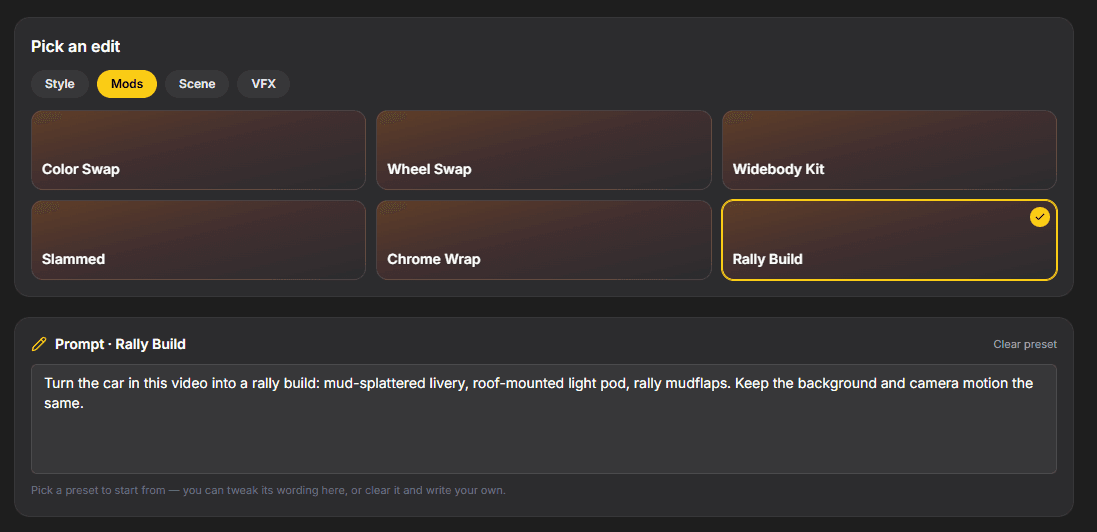
The loaded prompt is fully editable — swap “satin midnight purple” for your own color, change the weather, name a specific wheel. Or clear it and write your own from scratch. Then hit Edit Video. It takes a few minutes and you'll be emailed when it's ready.
Open Video mode, switch to Video Edit, upload your footage.
Explore other ways to create with Rollers.